
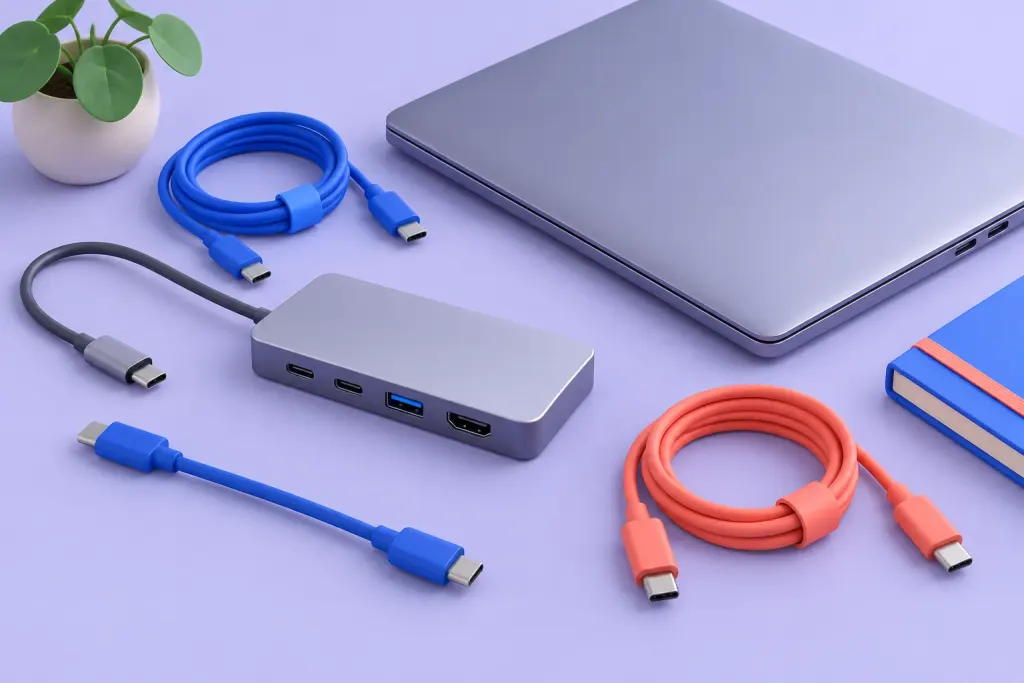
You connect a cable, the plug fits neatly, and the result still surprises you. Perhaps charging works but a display stays blank. Perhaps a file transfer is slower than expected. The shape of the connection answered one question; it did not answer every question about what the connection can do.
USB Type-C, commonly called USB-C, is a useful example of why a familiar connector needs a little more context.
Separate four questions
Start with the connector, then look for the supported data capability, charging capability and any display capability you need. USB-IF’s terminology guidance distinguishes the Type-C connector from USB data specifications and USB Power Delivery. It also explains that supported features vary between implementations.
That means a connector name alone is not a complete specification. Check the documentation for the particular port, cable and device, especially when a product has several similar-looking ports with different functions.
Read the connection from end to end
Imagine a fictional setup consisting of a laptop, a cable, a hub and a monitor. Write those four items on one line. Under each, record the feature your task requires and whether the manufacturer explicitly lists it. A blank in that row is a question to resolve, not a reason to assume support.
For a display connection, look for the stated video support and supported resolution or refresh-rate combination. For charging, compare the device’s requirements with the charger and cable specifications. For data, distinguish the advertised link capability from a measured transfer result.
Do not turn a label into a benchmark
A stated data rate describes a capability under a particular specification. The time needed to copy a folder also involves the source storage, destination storage, files and software. A cable label cannot establish the performance of that entire job.
If you are troubleshooting, change one relevant part at a time and keep the task the same. Record which port you used. Two tests are difficult to compare if the cable, hub, files and destination all changed together. This is a method for organising a check, not a claim that we tested any product.
Keep a small compatibility note
Once a setup works, note the device models, port and cable you used. A short record is more useful than “the white cable works”, especially when several accessories look alike.
The same habit helps elsewhere in tech: names are starting points, while details explain behaviour. For files, see how the image format changes the job.
Reference: USB-IF, Type-C cable and connector terminology guidance. Product-specific support should be checked with the manufacturer.